
In the world of laptops, thermal performance is the unsung hero, quietly working behind the scenes to keep devices cool while users crank out spreadsheets or binge-watch the latest series. When a laptop overheats, it’s like a drama queen throwing a tantrum—slowing down, freezing up, and making it clear it needs a break. But fear not! Understanding how to optimize thermal performance can turn that fiery meltdown into a smooth, cool operator.
Overview of Laptop Thermal Performance
Laptop thermal performance significantly impacts overall device efficiency. Effective cooling reduces the risk of overheating and enhances user experience during demanding tasks. High temperatures can lead to throttling, which directly affects processing speed and responsiveness.
Longevity of laptop components depends on maintaining suitable operating temperatures. Most laptops utilize fans, heat sinks, and thermal paste to manage heat effectively. Poor thermal design may result in heat accumulation, causing crashes or unexpected shut-downs.
Monitoring temperatures helps identify overheating issues early. Tools like HWMonitor and MSI Afterburner offer insight into CPU and GPU temperatures. Typically, safe operating ranges for CPUs fall between 70°C and 85°C under load. Exceeding these limits can trigger performance drops.
Users should regularly clean laptop vents and fans to ensure optimal airflow. Dust buildup restricts airflow, leading to possible overheating situations. Utilizing a cooling pad can also enhance thermal performance, especially during resource-intensive tasks such as gaming or video editing.
Ultimately, understanding how thermal performance influences laptop functionality proves vital. Knowledge empowers users to implement measures that prevent overheating and ensure smooth operation. Choices regarding software optimization and hardware upgrades contribute to maintaining ideal thermal management.
Factors Affecting Laptop Thermal Performance
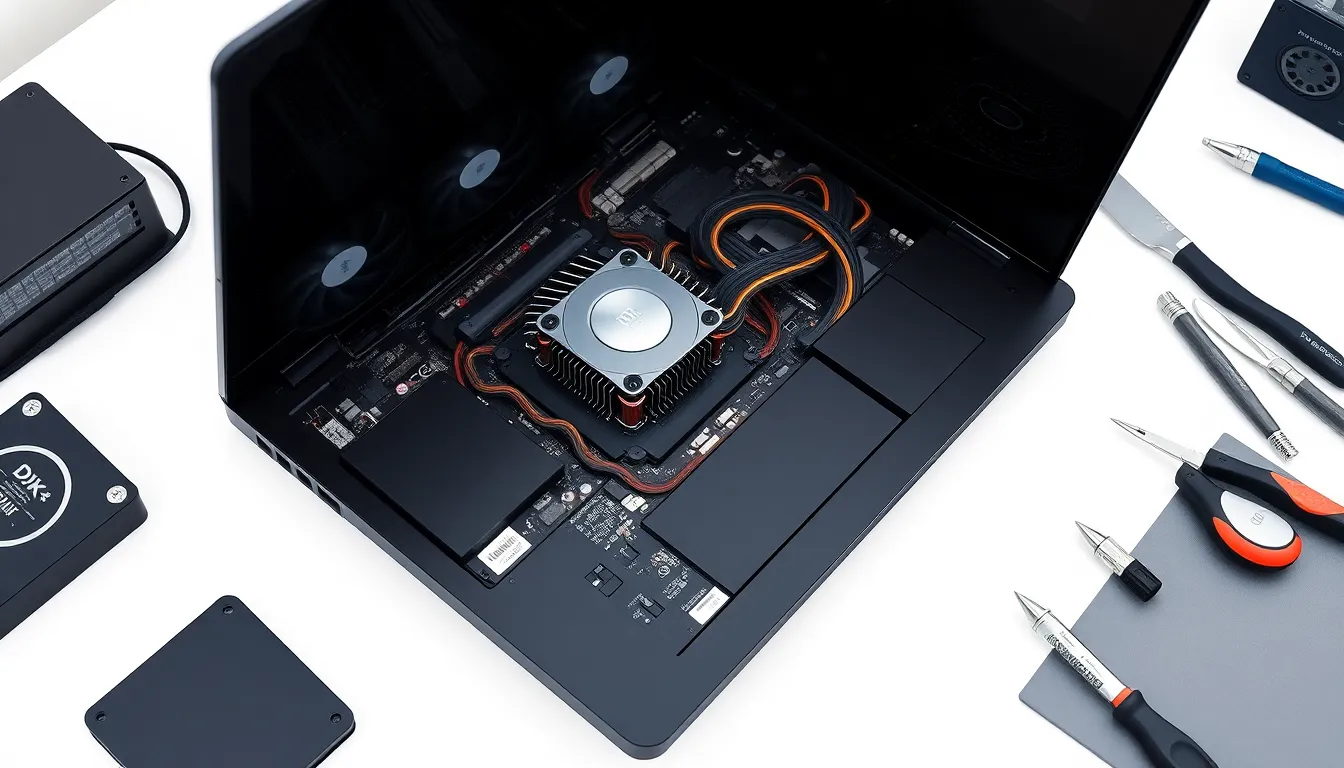
Thermal performance in laptops depends on several key factors. Understanding these elements aids users in preventing overheating and improving overall functionality.
Hardware Components
CPUs and GPUs play pivotal roles in generating heat during intensive tasks. While high-performance components often yield better results, they also produce more heat. The materials used in heat sinks and thermal designs impact heat dissipation effectiveness. Components like RAM and storage drive types, such as SSDs or HDDs, also generate heat, influencing temperature management. Size and layout of laptop internals determine airflow, affecting cooling efficiency. Users should consider the balance between performance and heat production when selecting hardware.
Cooling Solutions
Cooling solutions vary across laptop models, impacting thermal performance directly. Fans and heat pipes commonly work together, promoting efficient heat transfer away from components. User environments affect cooling, as dust accumulation in vents can obstruct airflow and reduce cooling effectiveness. Thermal paste quality and application technique significantly influence heat transfer between critical components and heat sinks. Cooling pads enhance airflow, especially during demanding tasks, allowing laptops to maintain optimal temperatures. Users can choose laptops with advanced cooling technologies for improved thermal management.
Measurement Techniques for Thermal Performance
Thermal performance measurement involves various techniques that help assess laptop efficiency. Understanding these techniques ensures users maintain optimal device functions.
Benchmarking Tools
Benchmarking tools provide insights into thermal performance by simulating demanding tasks. Applications like Cinebench and 3DMark gauge CPU and GPU performance while monitoring temperatures. Users obtain real-time data that indicates thermal throttling occurrences. Reliable software options like HWMonitor and MSI Afterburner display temperature readings and component utilization. Selecting the right benchmarking tool enables users to compare performance across different laptops effectively.
Real-World Testing
Conducting real-world testing reveals how laptops perform under actual usage scenarios. Users can run resource-intensive applications, such as video editing software or high-end games, while monitoring temperatures. Performance metrics gathered during these tasks illustrate each laptop’s thermal management capabilities. Observing temperature trends during typical activities provides valuable insights into potential overheating issues. Comparing results across various models helps users make informed purchasing decisions based on thermal efficiency.
Impact of Thermal Performance on User Experience
Thermal performance directly affects user experience. Users encounter slowdowns and freezes when laptops overheat. High temperatures lead to CPU and GPU throttling, reducing processing speed significantly. Consequently, tasks like video editing or gaming can become frustrating due to lag.
An efficient cooling system enhances overall device functionality. Cooling solutions, such as fans and heat sinks, play crucial roles in maintaining safe operating temperatures. Without effective cooling, laptops risk unexpected shutdowns or crashes during demanding operations.
Regular monitoring of temperatures contributes to improved user experience. Tools like HWMonitor and MSI Afterburner help users keep track of component temperatures. It’s vital to operate CPUs within a safe range, typically between 70°C and 85°C under load.
Proper care of hardware can enhance thermal performance. Cleaning laptop vents and fans ensures optimal airflow, preventing dust accumulation from hindering cooling efficiency. Additionally, using cooling pads during resource-intensive tasks can help maintain lower temperatures.
Manufacturers prioritize thermal design, impacting user satisfaction. Laptops with well-designed heat dissipation mechanisms tend to perform better than models with poor thermal management. Users should consider thermal efficiency when purchasing new devices.
Benchmarking tools also provide insights into thermal performance. Cinebench and 3DMark assess how laptops handle demanding tasks, highlighting potential thermal issues. Observing performance under real-world conditions assists users in understanding their laptop’s thermal capabilities.
Ultimately, maintaining effective thermal performance enhances user experience across various applications. By prioritizing cooling and monitoring temperatures, users can ensure their laptops operate smoothly and efficiently.
Thermal performance plays a pivotal role in the overall functionality and longevity of laptops. Users who prioritize effective cooling solutions can significantly enhance their device’s responsiveness and efficiency. By actively monitoring temperatures and maintaining clean vents, they can prevent common issues associated with overheating.
Investing in quality thermal paste and utilizing cooling pads during intensive tasks can further optimize performance. Understanding the impact of thermal design on user experience allows for informed decisions when selecting a laptop. With the right measures in place, users can enjoy a smoother and more reliable computing experience.